Loads
Gravity Loads
ENRSTEEL allows user to define gravity loads including Dead Load (D), Live Load (L), Roof Live Load (Lr), Snow Load (S) and Unbalanced Snow Load (Su) And Seismic Load.
Users can add loads for each element individually after draw it like walls, single trusses, or truss area.
Loads in Walls
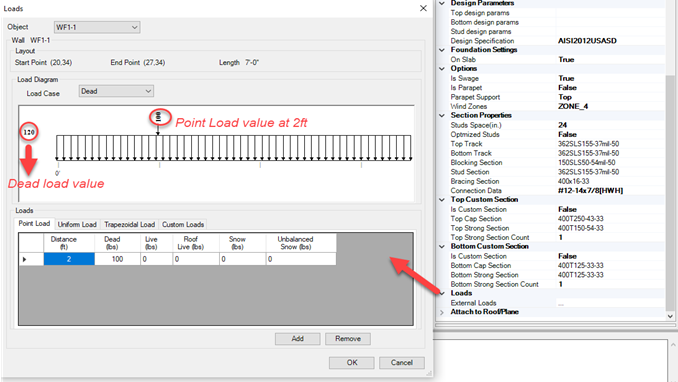
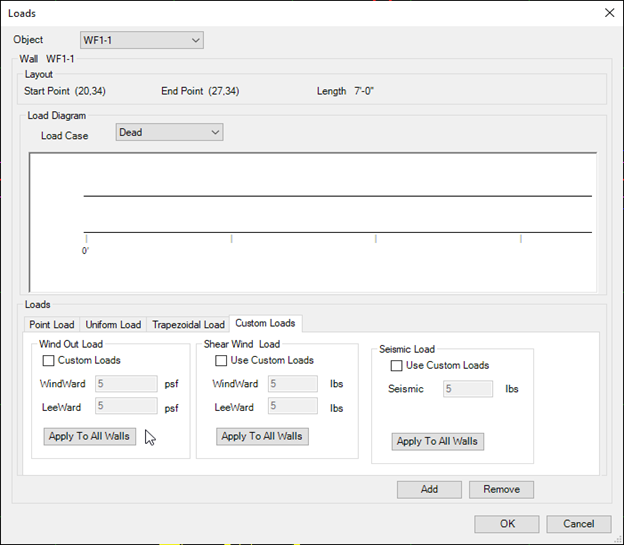
From Loads tab Users can add point load at any distance, Uniform load Trapezoidal load and use Custom load if they needed to insert it manually. Point loads will appear as red note on wall fig 39. Also we can choose load case to be as Dead, Live, Roof Live Load, Balanced Snow or Unbalanced snow.

Wind Loads
ENRSTEEL also allows user to define wind loads on Main Force Lateral Resistance System where the program automatically calculates the distribution and design the system or individual elements.
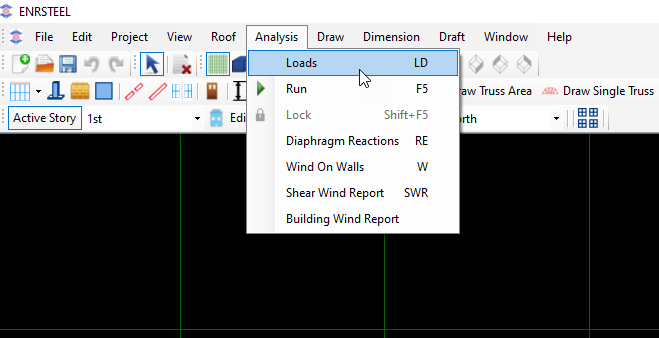
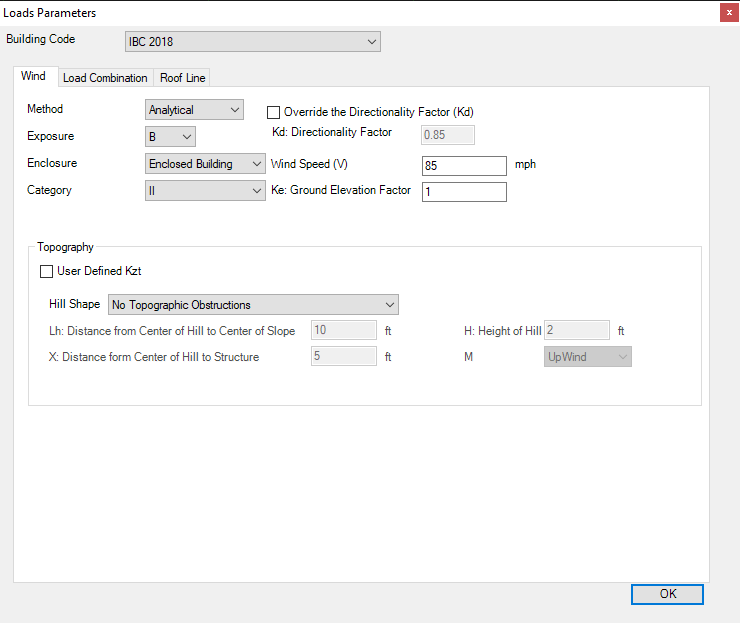
Menu bar has tab called Analysis it has at loads button when you hit on it the fig 58 will show up to insert wind data. There is some available Codes (IBC 2006,2009,2012,2015,2018) and 2 method for wind analytic (Analytical or Simplified), Wind Exposure (B,C,D) and wind Enclosure ( I, II, III), Wind Speed is measured by Mile per Hour ( MPH).
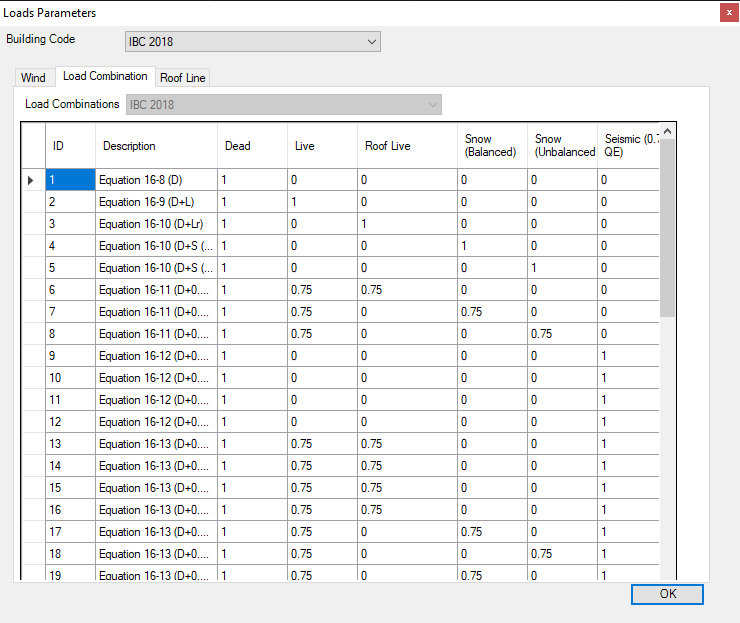
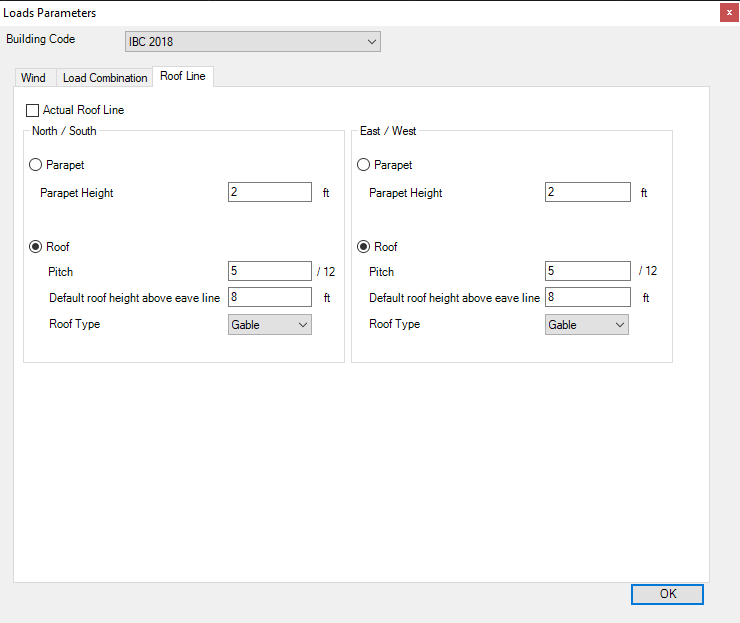
Fig 58 show Load Combinations. And fig 60 show the window where users can add loads for roofs.
Loads in Trusses
To add loads for Trusses select the Truss and hit left click on mouse to open properties window then go to Loads section for truss load type select one of (Floor, Roof, Ceiling), Select wind shape (Hip, Flat, Mono slope, Gable, None), then select custom loads (True, False), If you select True in custom loads the fig 61 will appear to insert loads data.
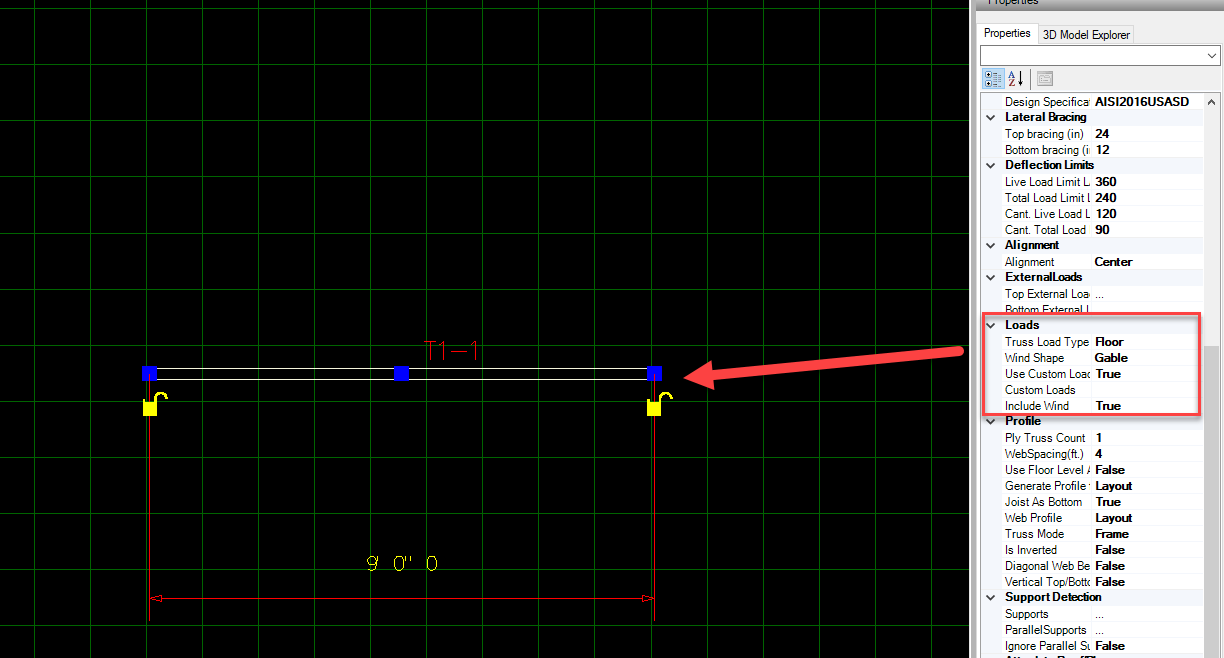
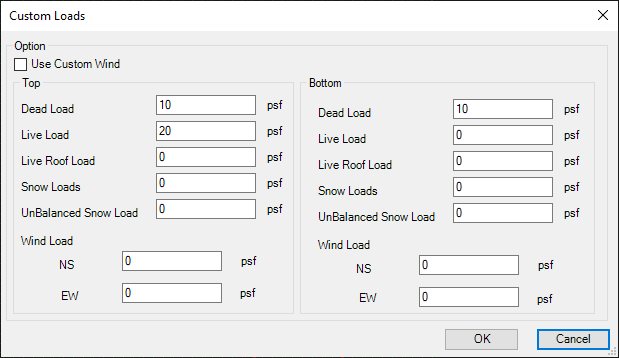
Fig 62 show how to add loads at truss area.
