Reports
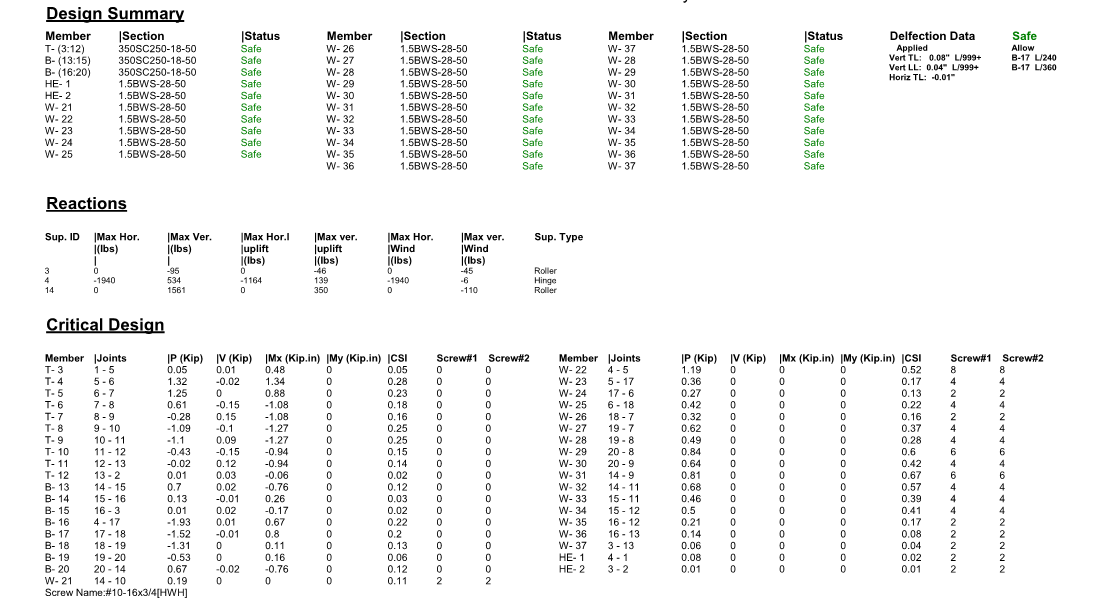
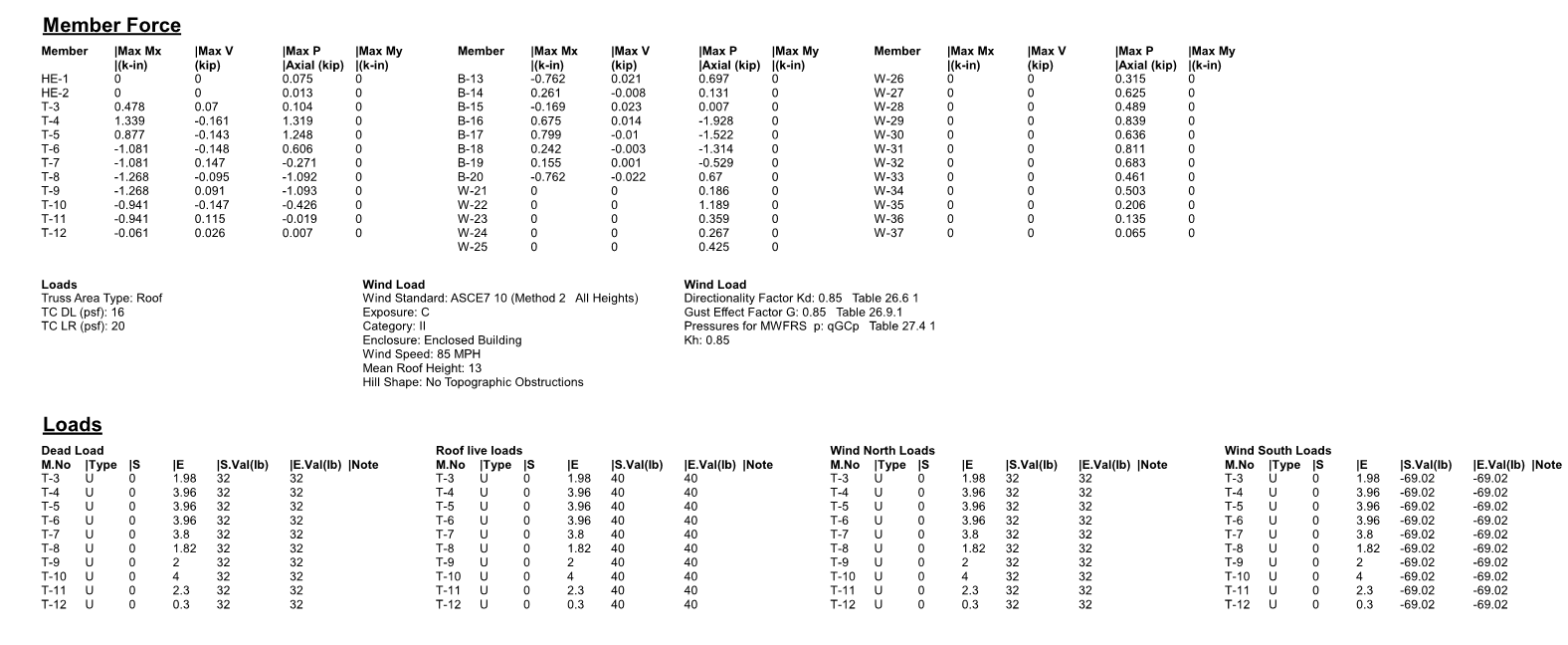
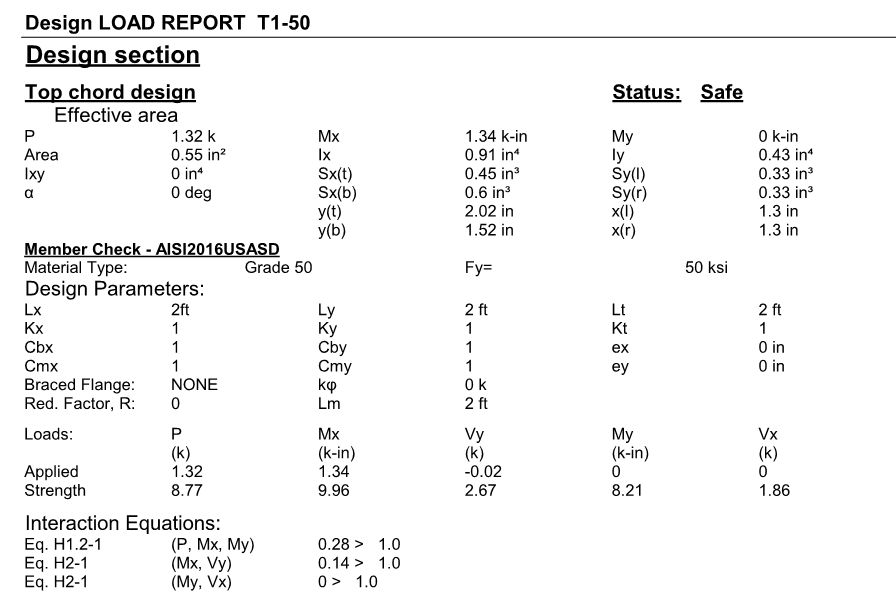
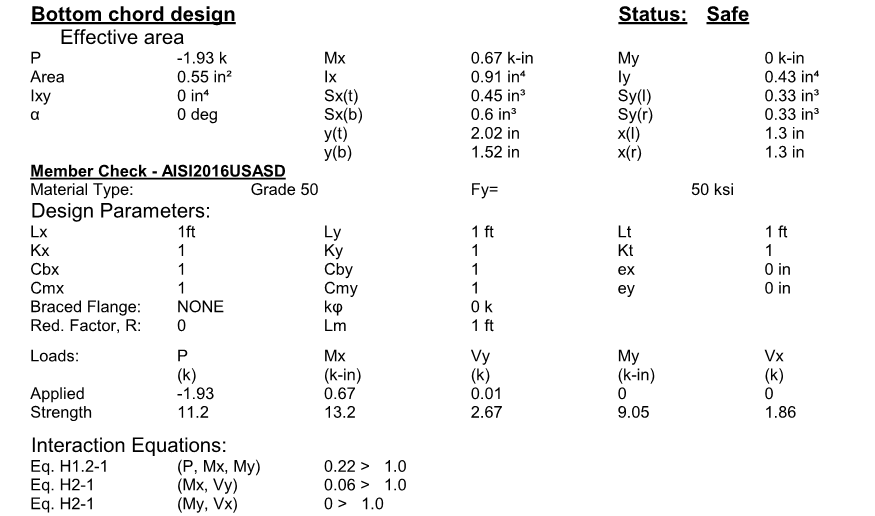
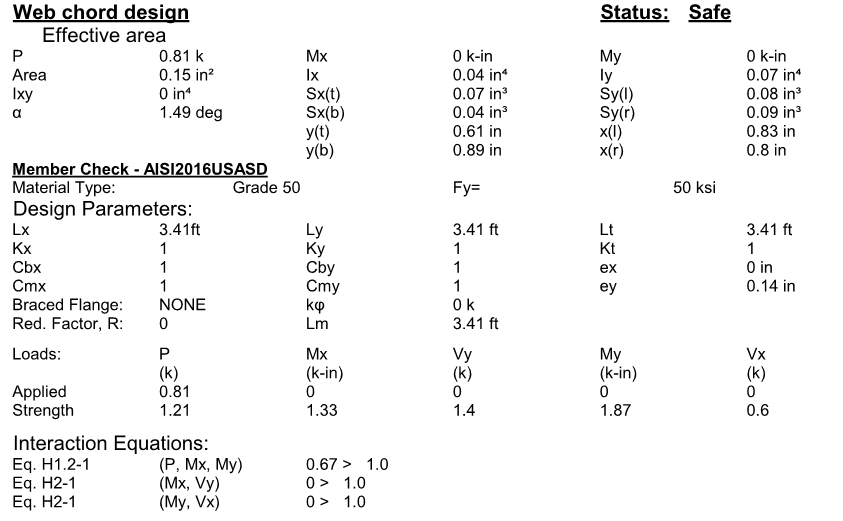
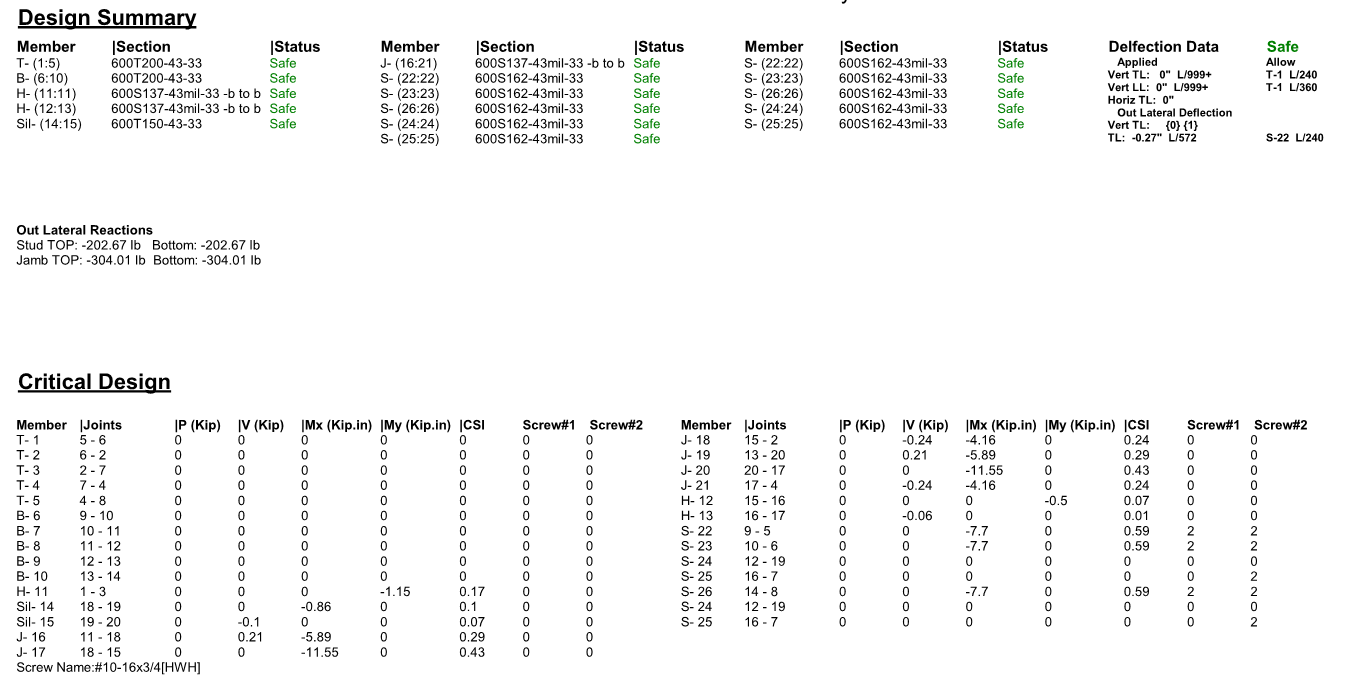
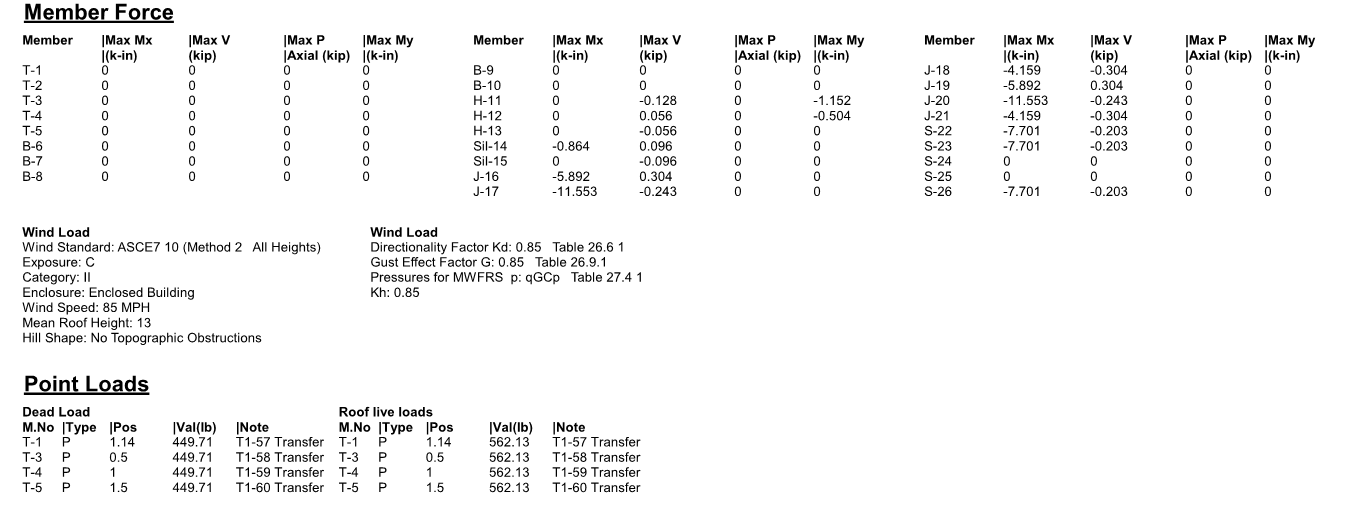
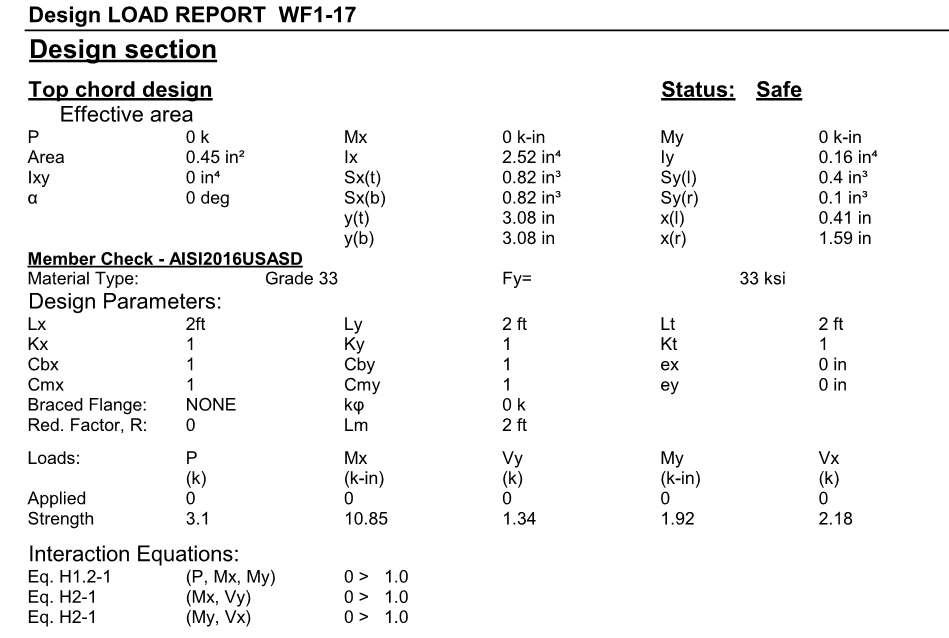
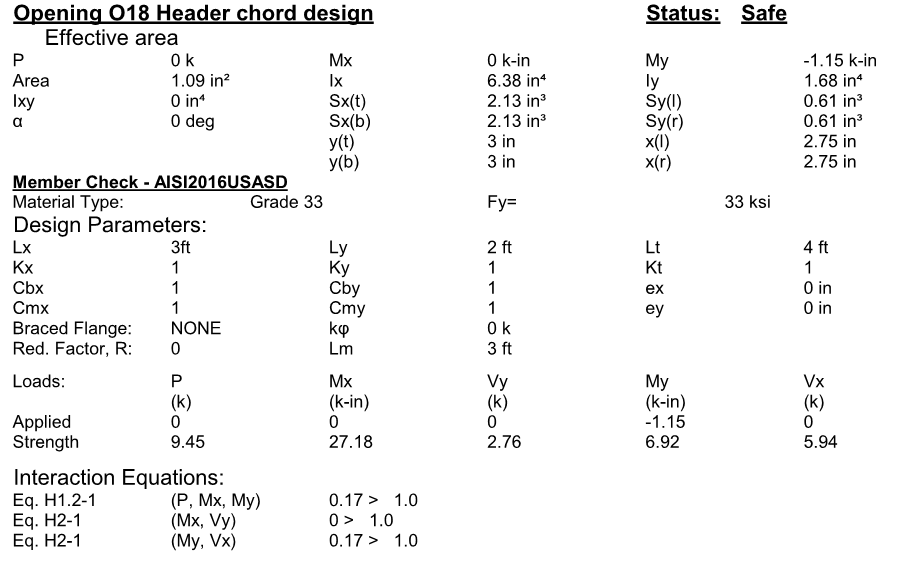
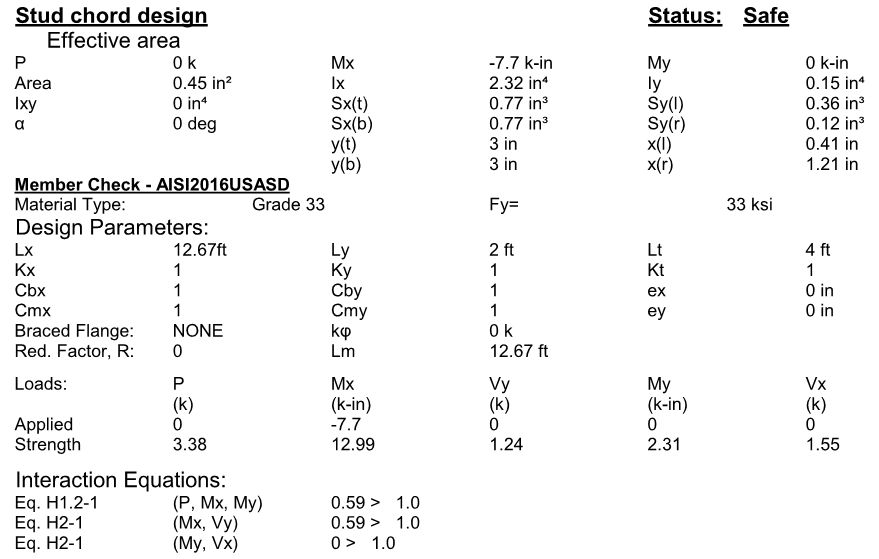
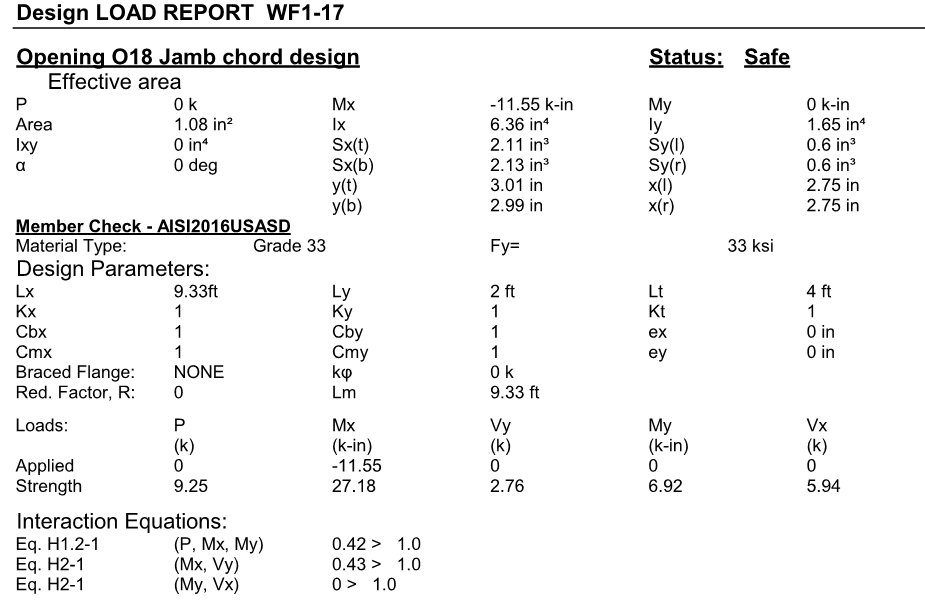
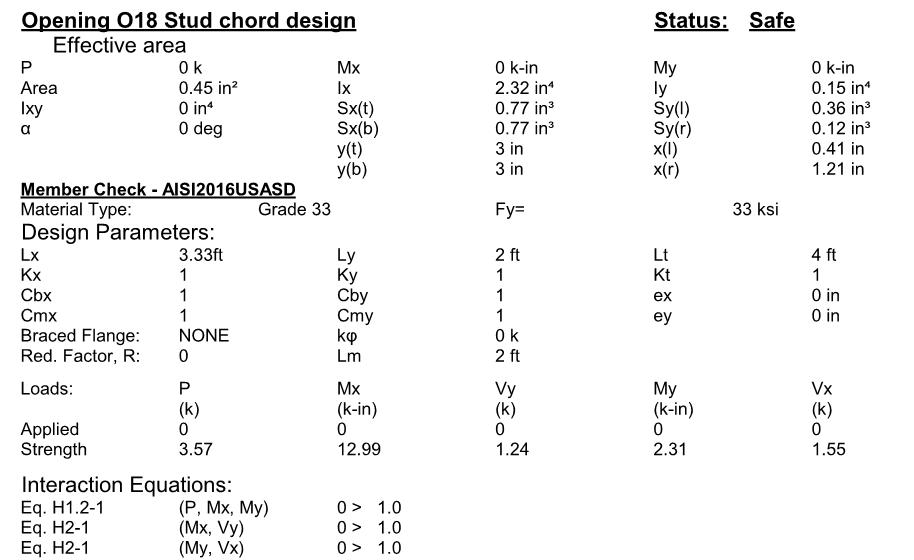
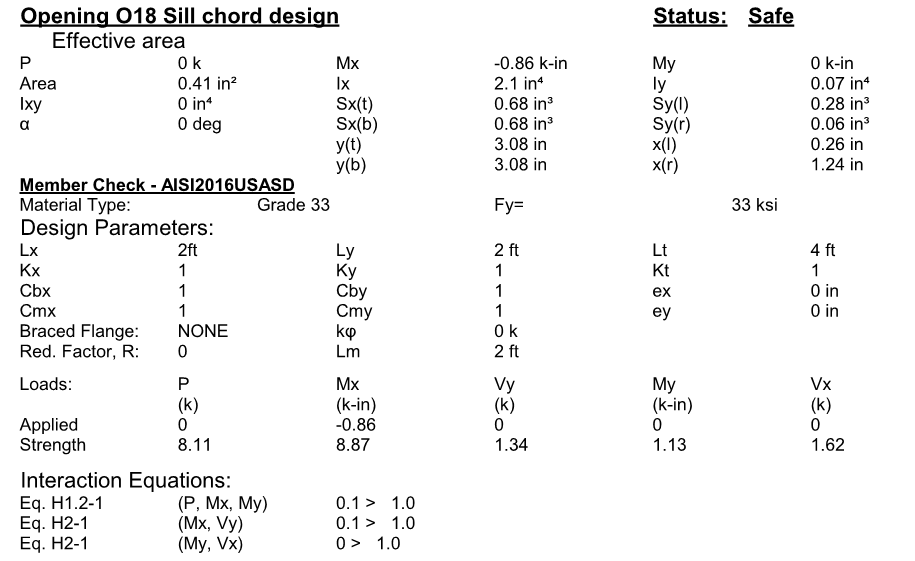
Users can print report after they run (F5) them design. The following is samples of truss and wall report.
Sample Truss Report

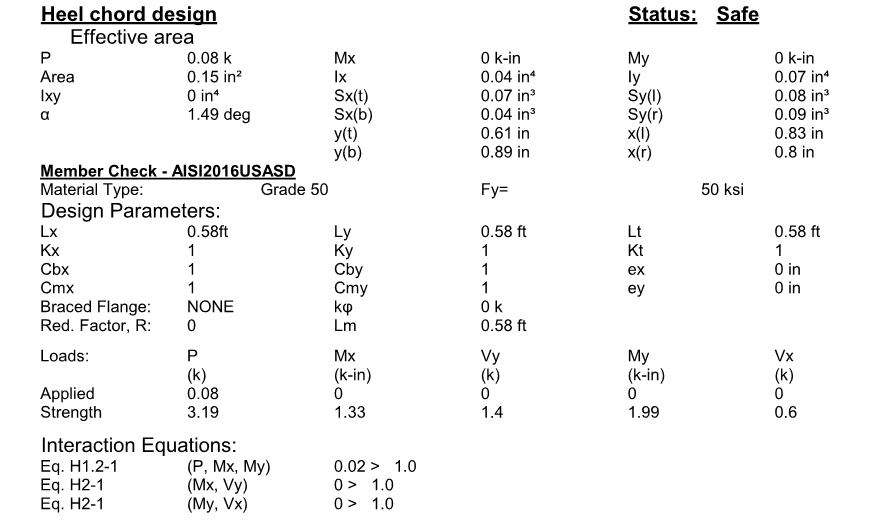
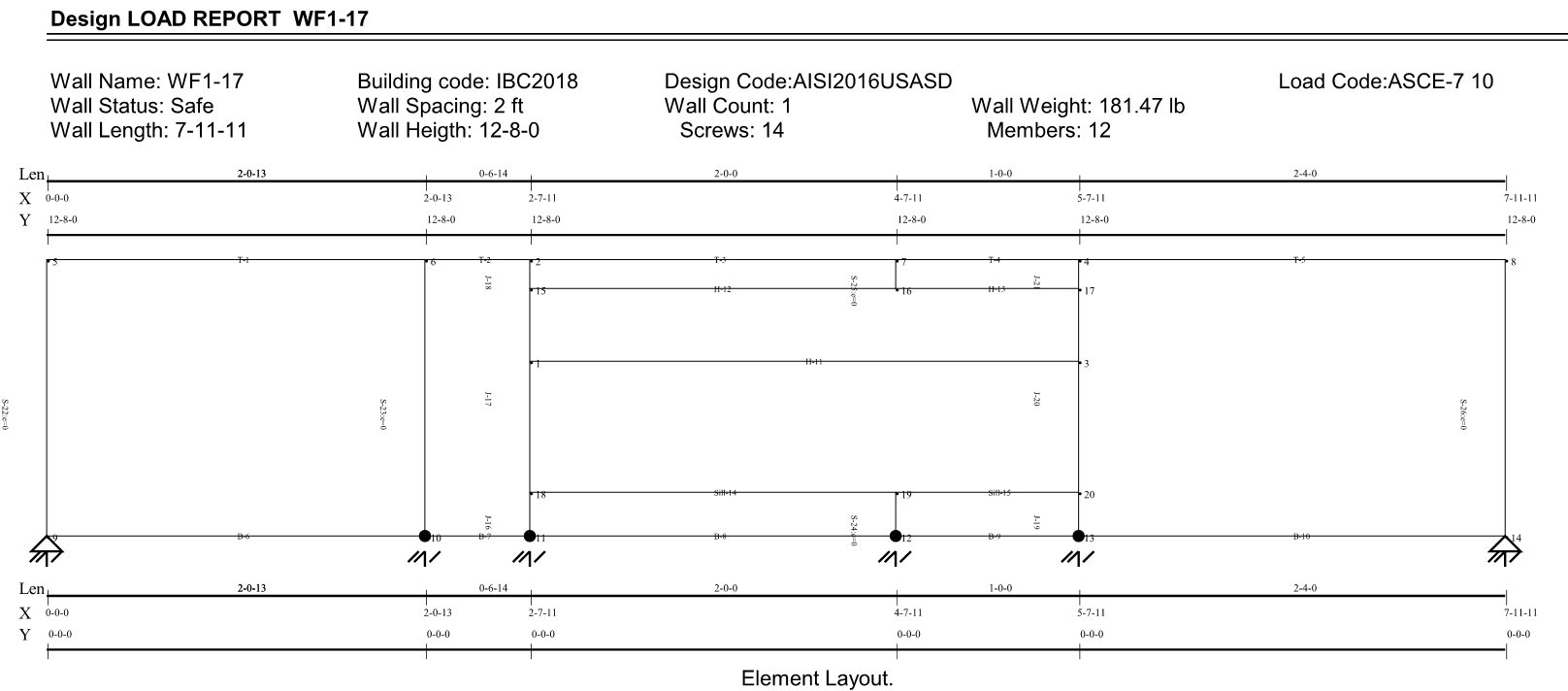
Sample for Wall Report
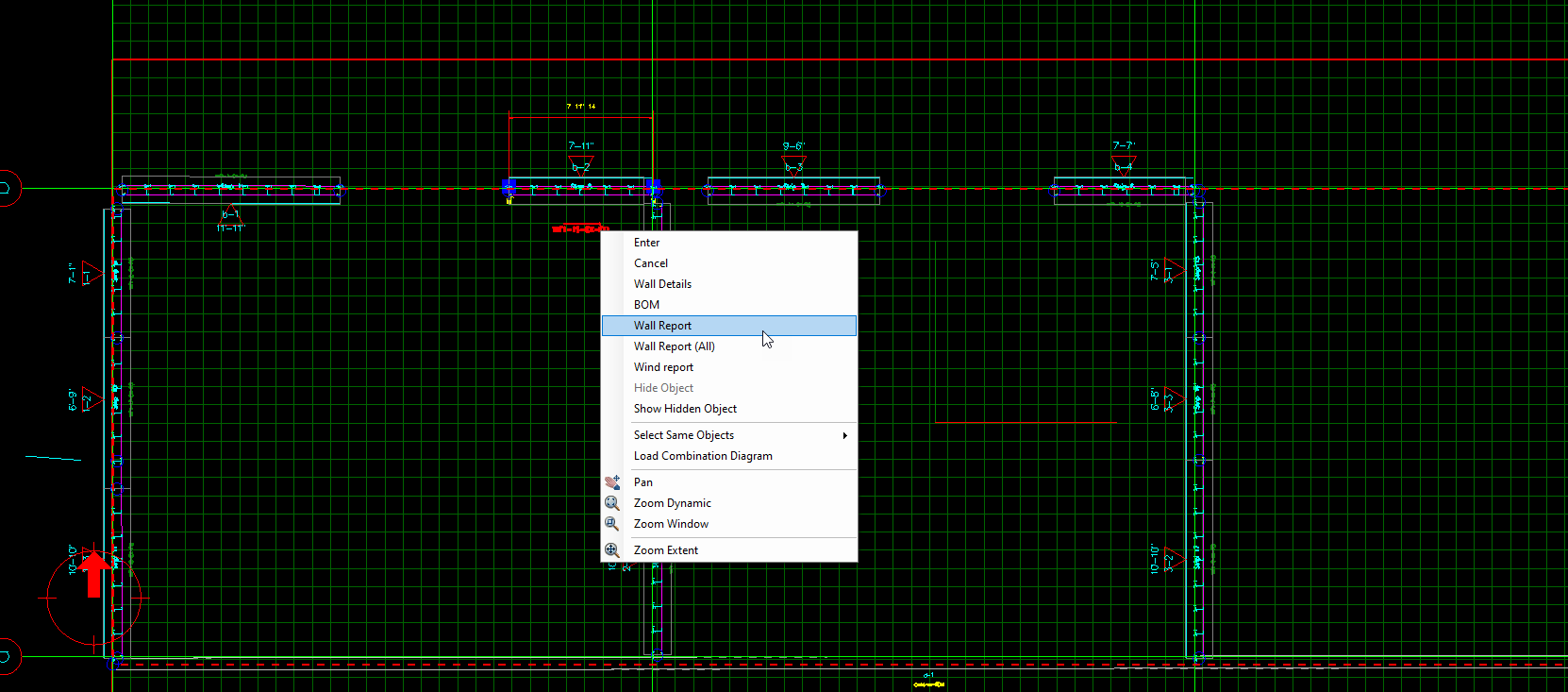
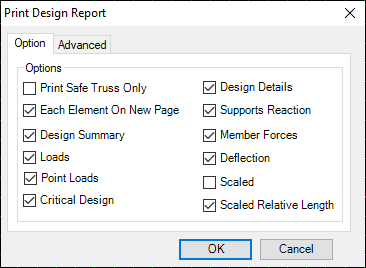
Users can print wall report by following next fig. By selection the wall and then right click on it and select wall report, then select what you want include in report as in fig

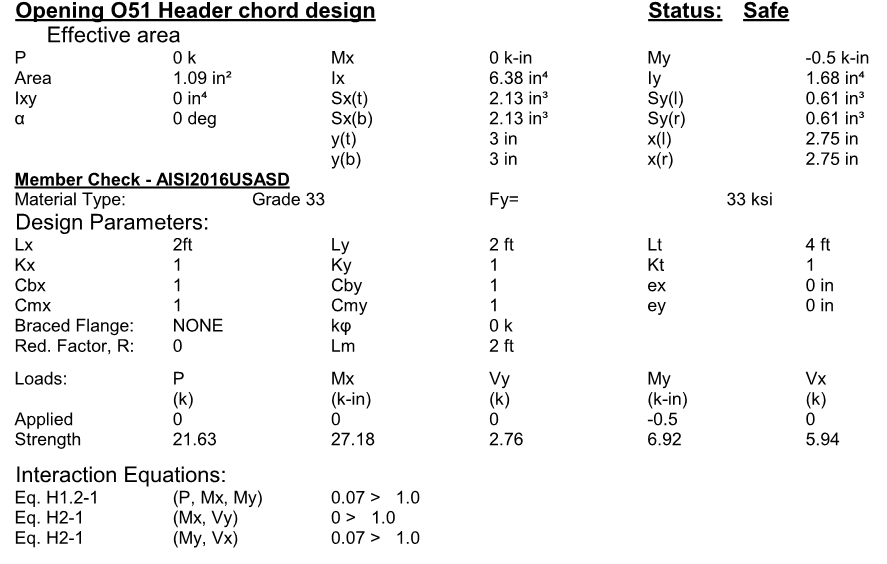
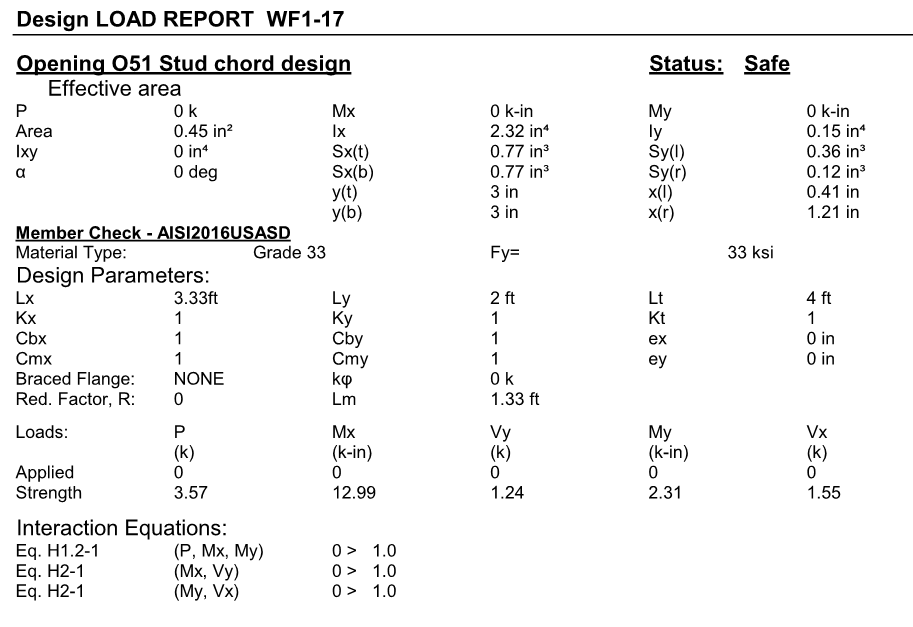
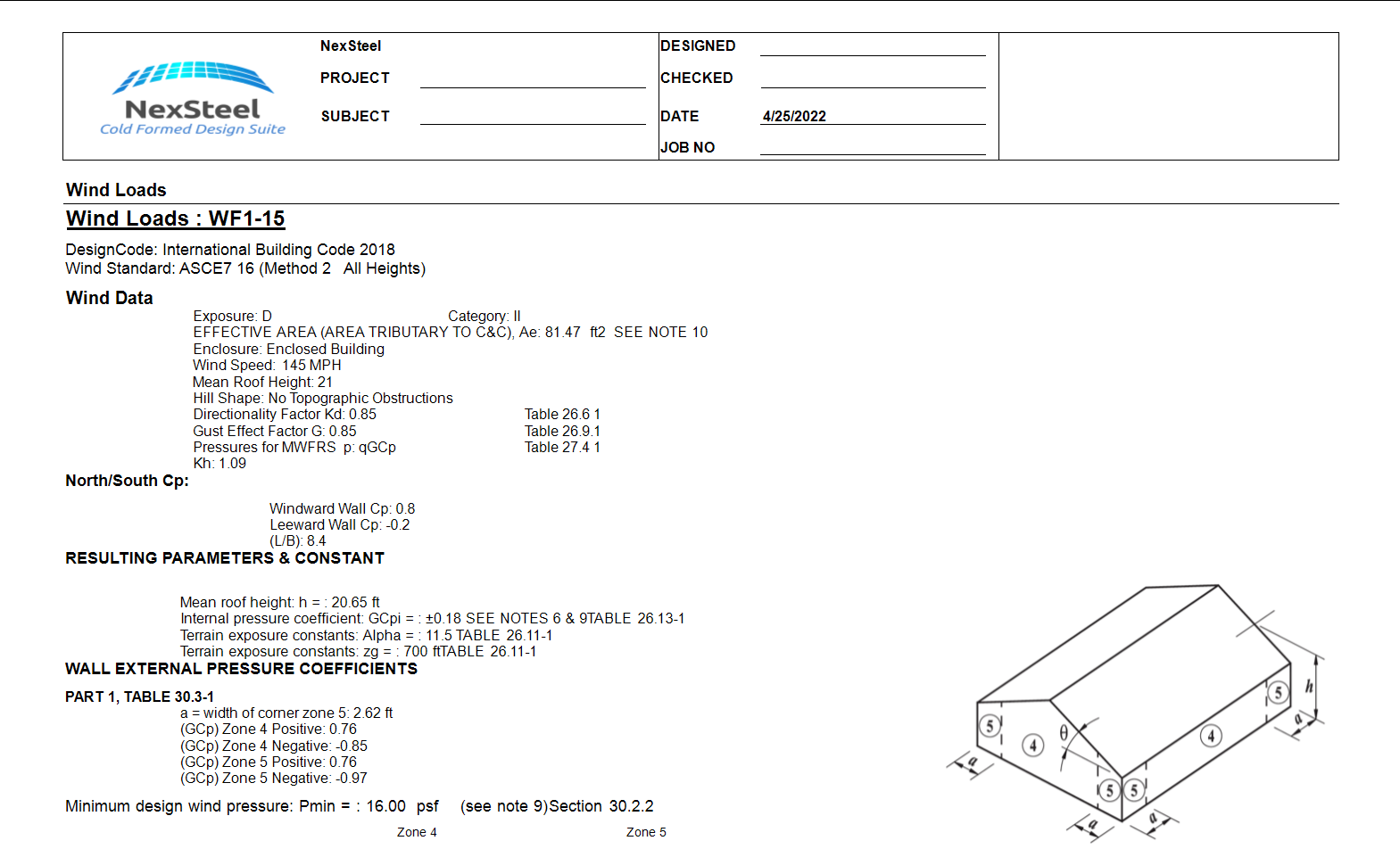
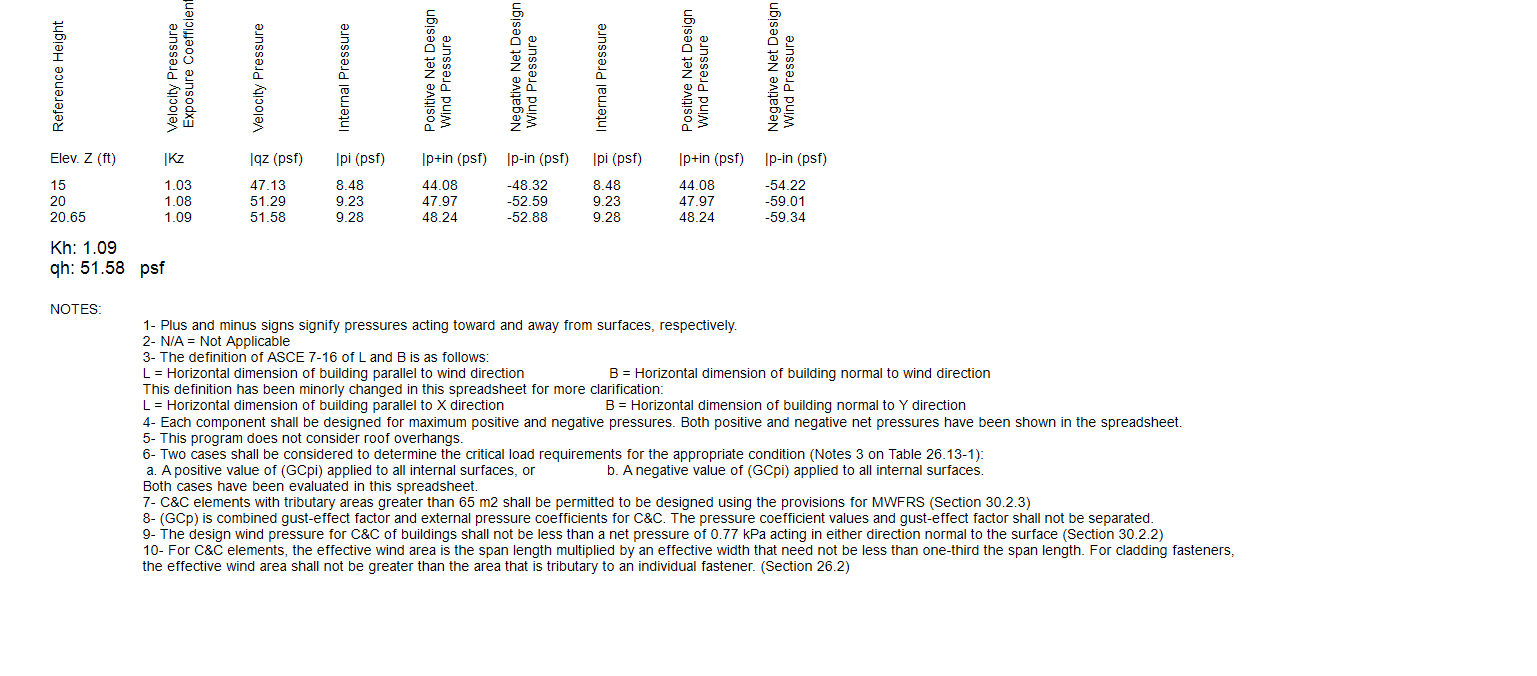
Wind Report Sample
Users can reach to wind report by selection the element-wall for example- then right click and select wind report.
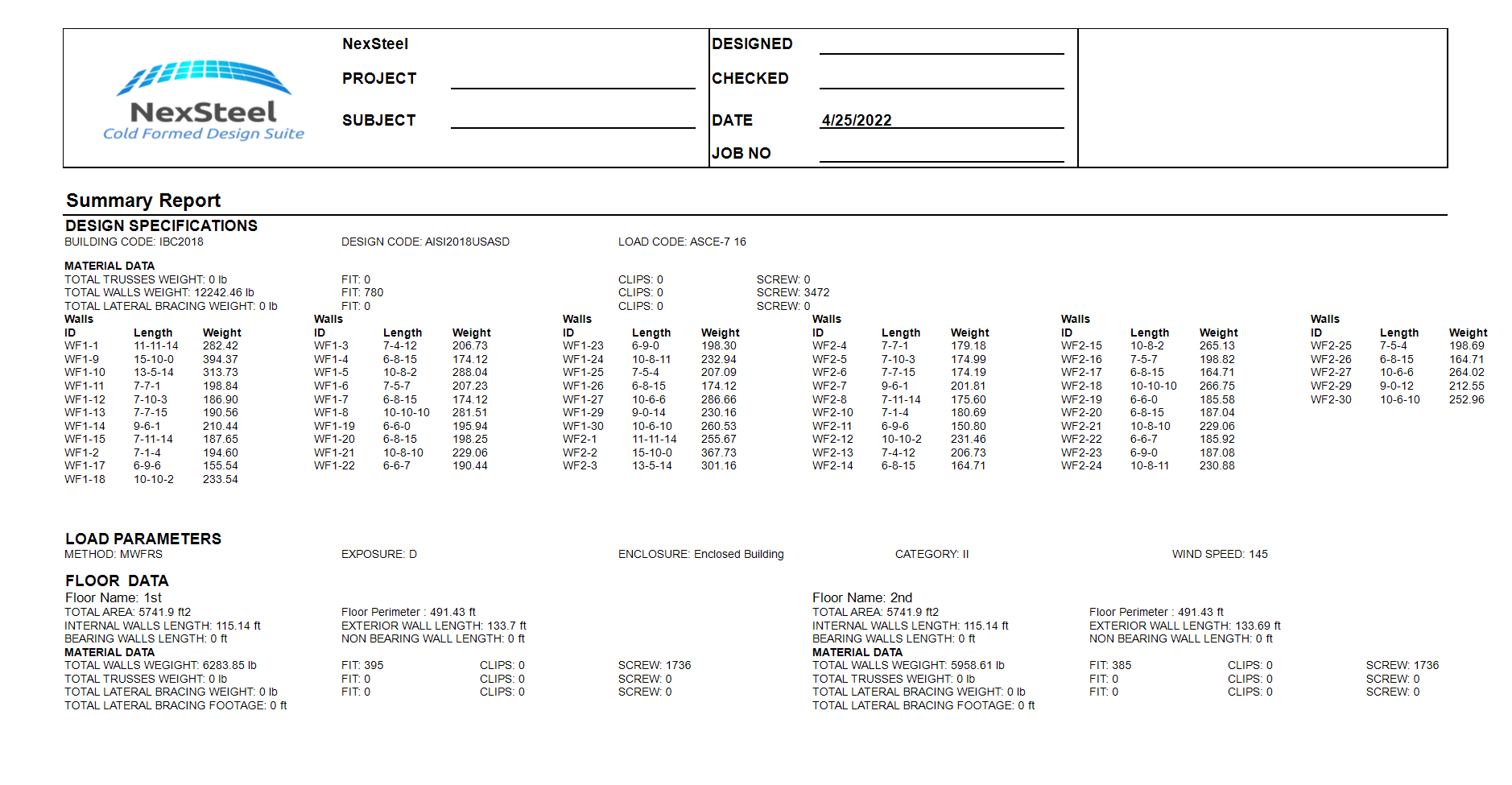
Summary Report Sample
Users can reach Summary Report from menu bar Project section or by shortcut (PS)
Users can print reports for each specific element or component in them job by following fig 63,64. Select any choice then hit Print button.
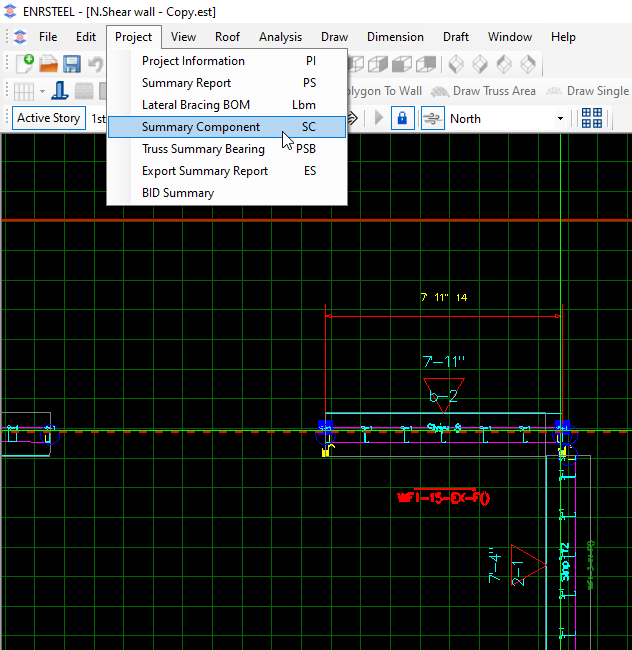
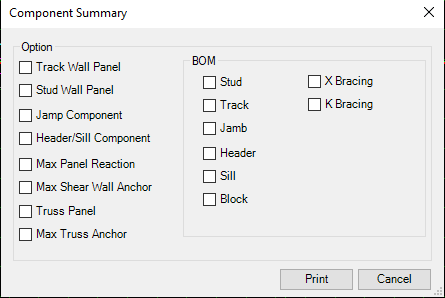
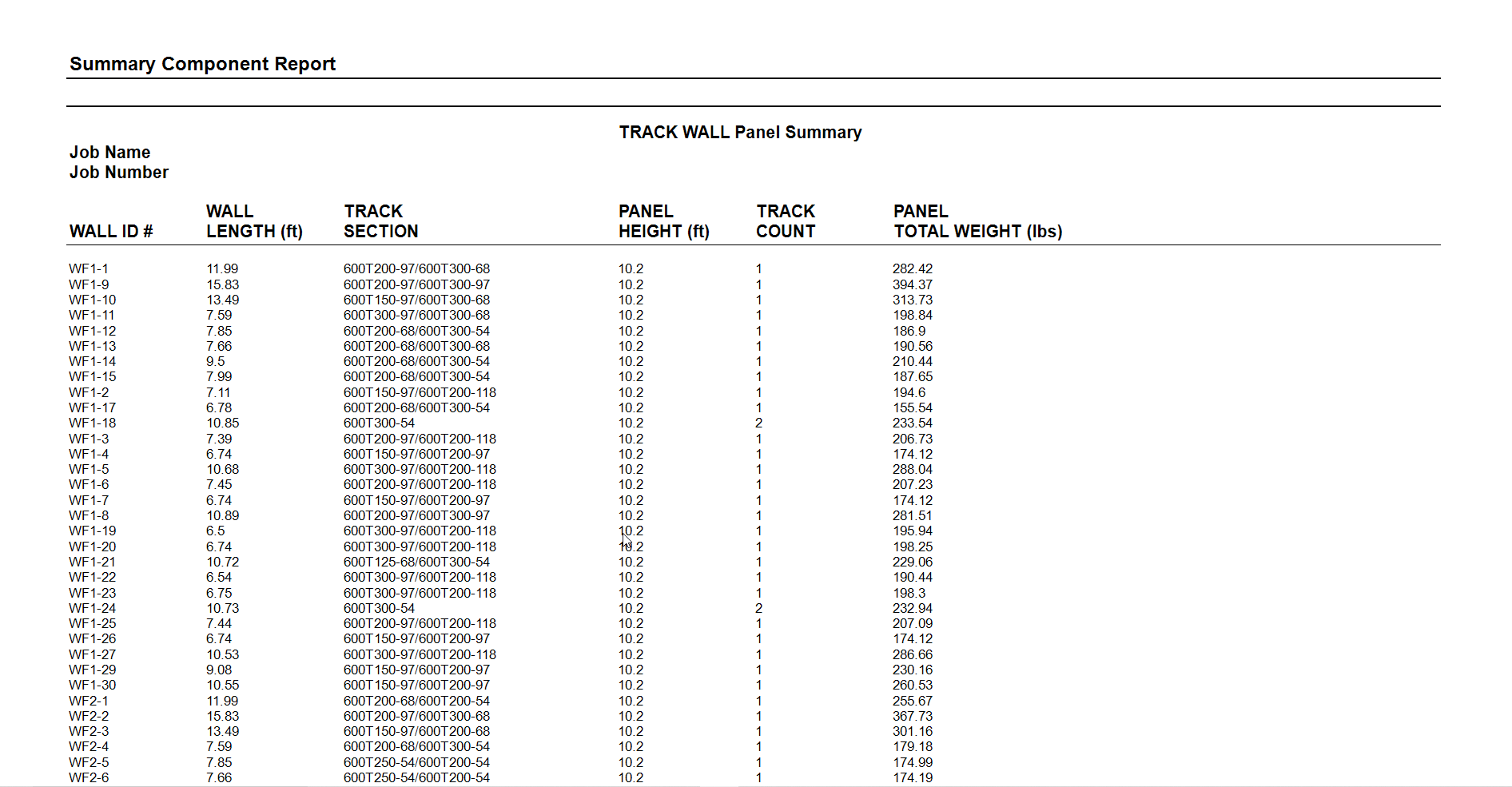
Component Summary for Track Wall Panel
Users can reach Component Summary report from menu bar Project section or by shortcut (SC)
Component Summary for X-Bracing
Users can reach Component Summary report from menu bar Project section or by shortcut (SC)
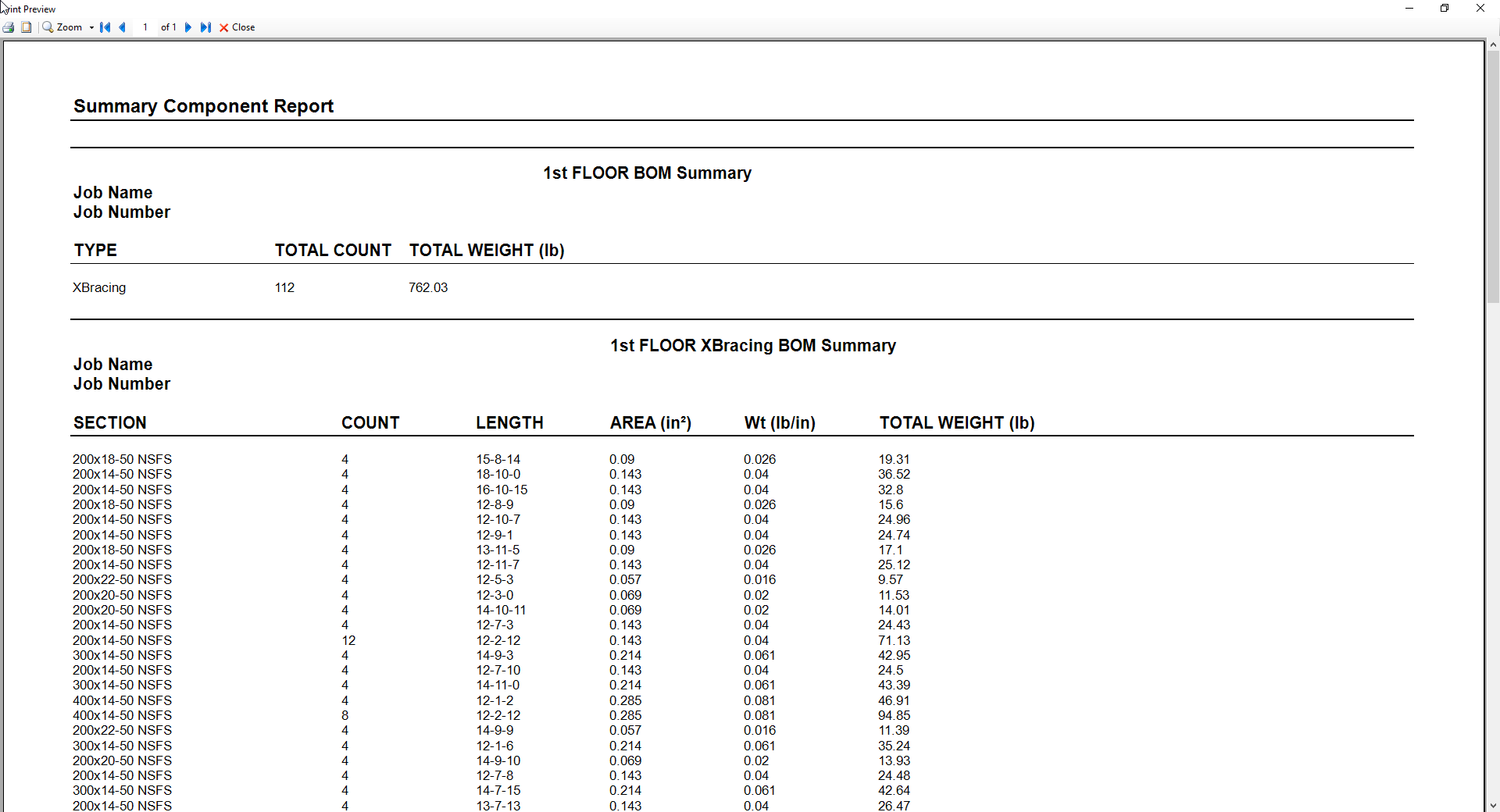
Bill Of Material Report (BOM) Sample
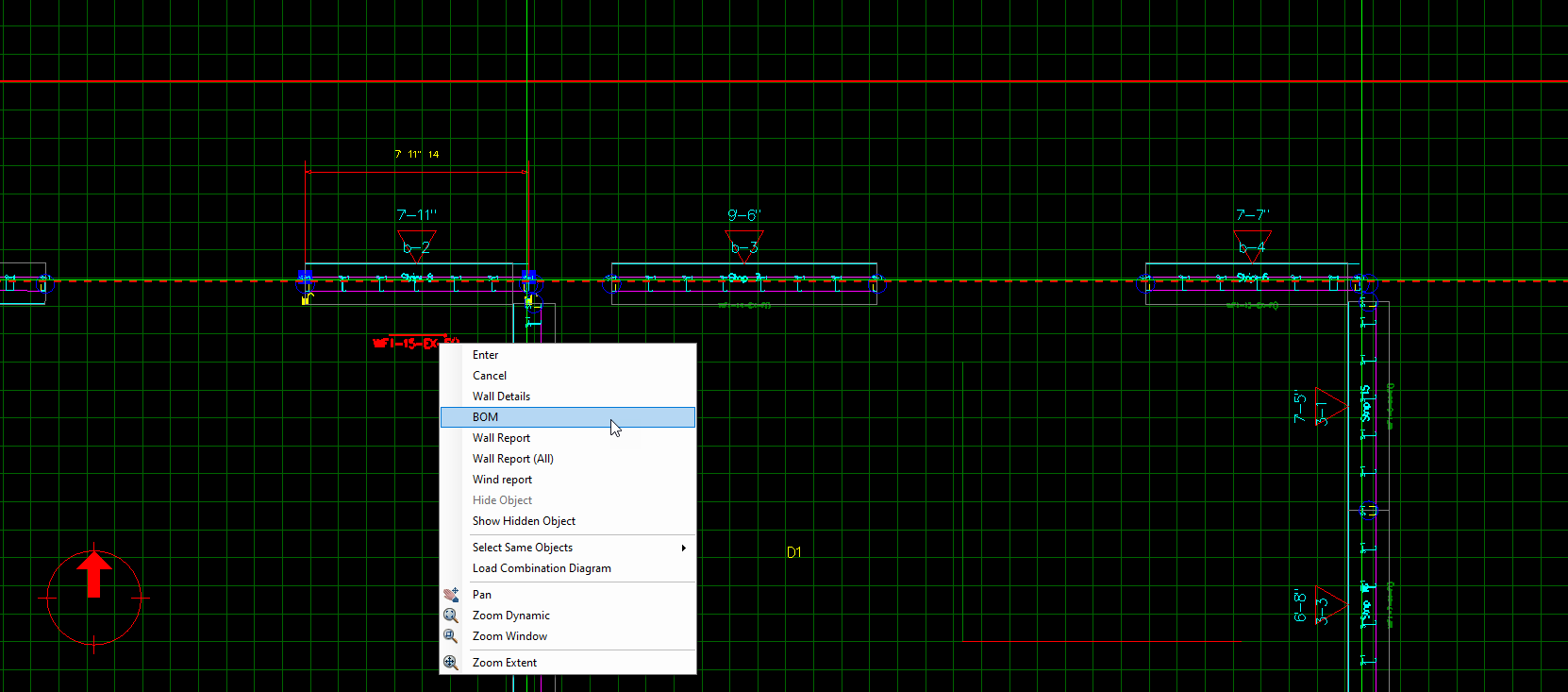
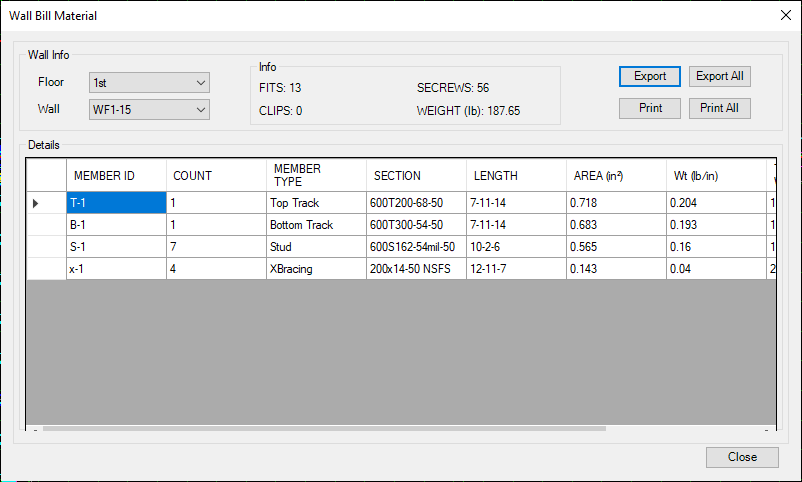
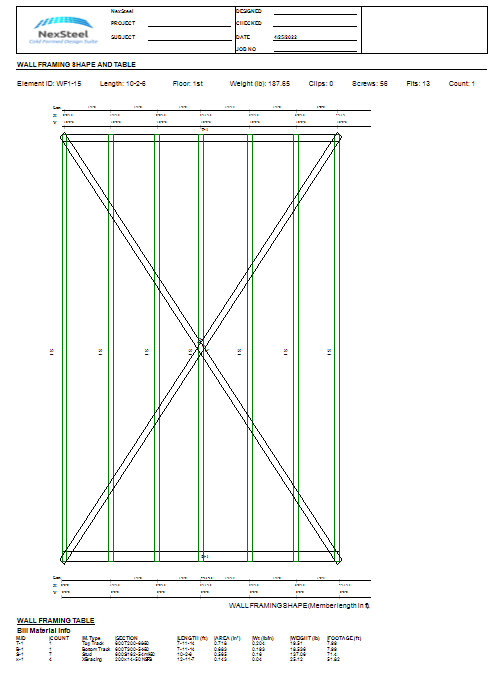
Users can print report include all the project materials and other details related to project as in fig 65, 66. By selection the item then right click and choose BOM.
They can print the report for single unit or for whole job.
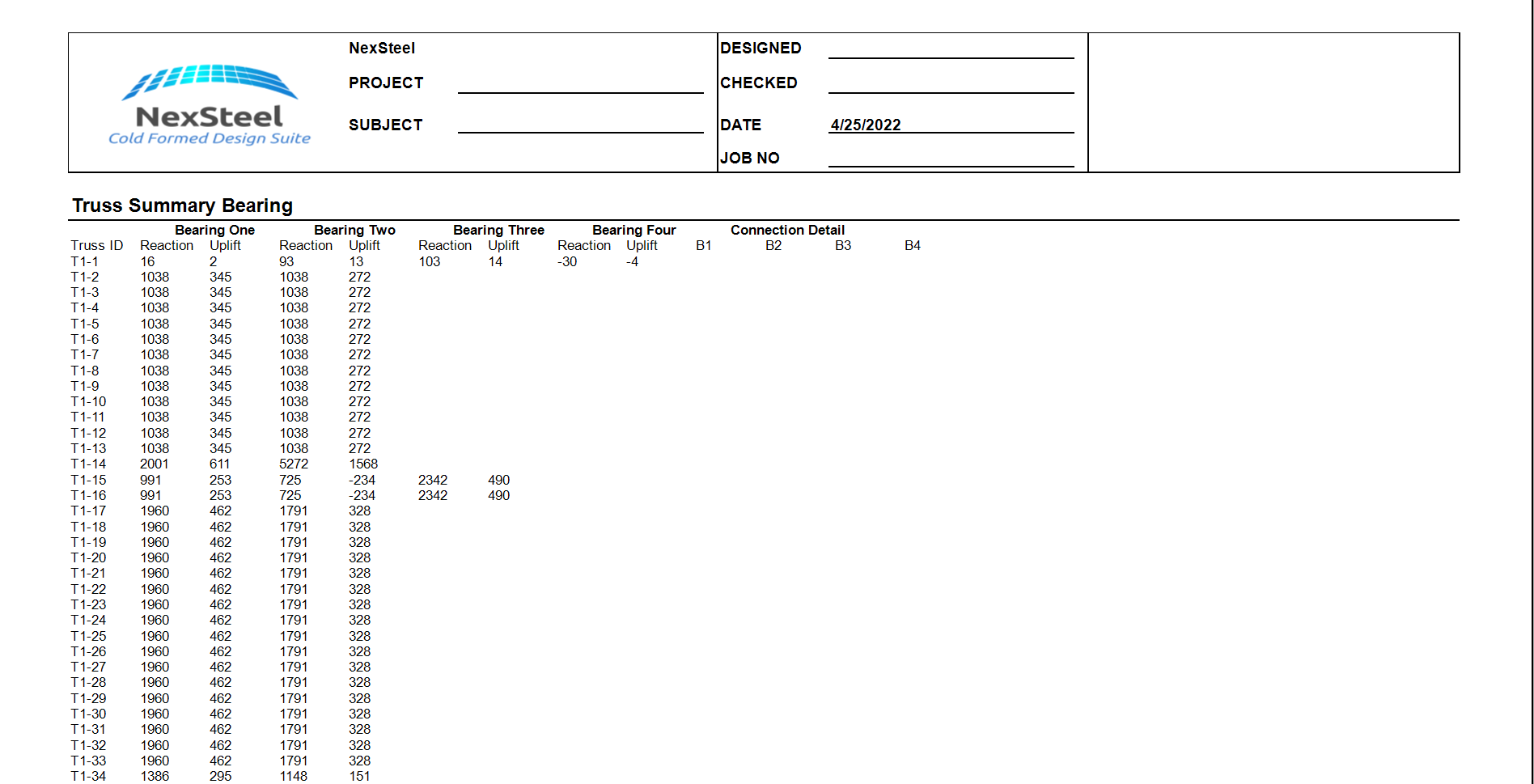
Truss Summary Bearing Report - Sample
Users can reach Truss Summary Bearing report from menu bar Project section or by shortcut (PSB)
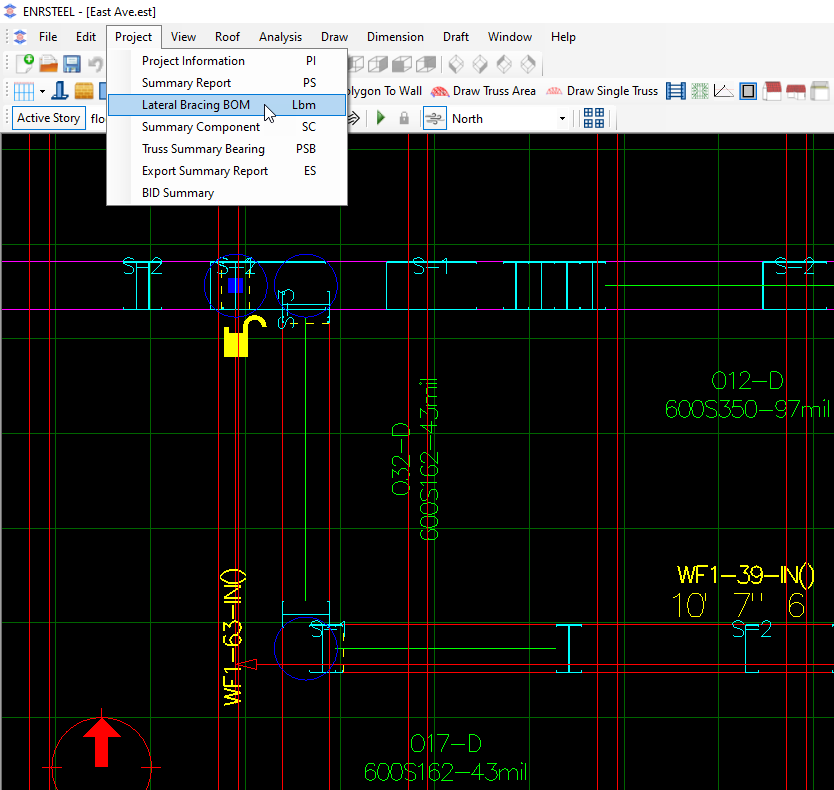
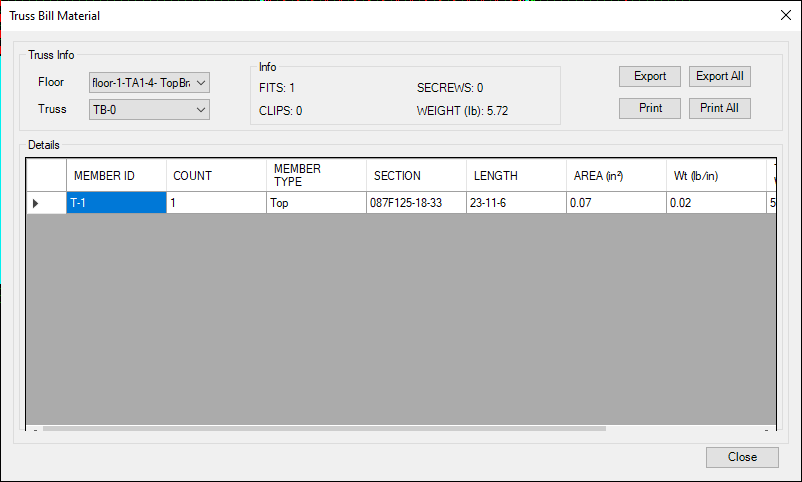
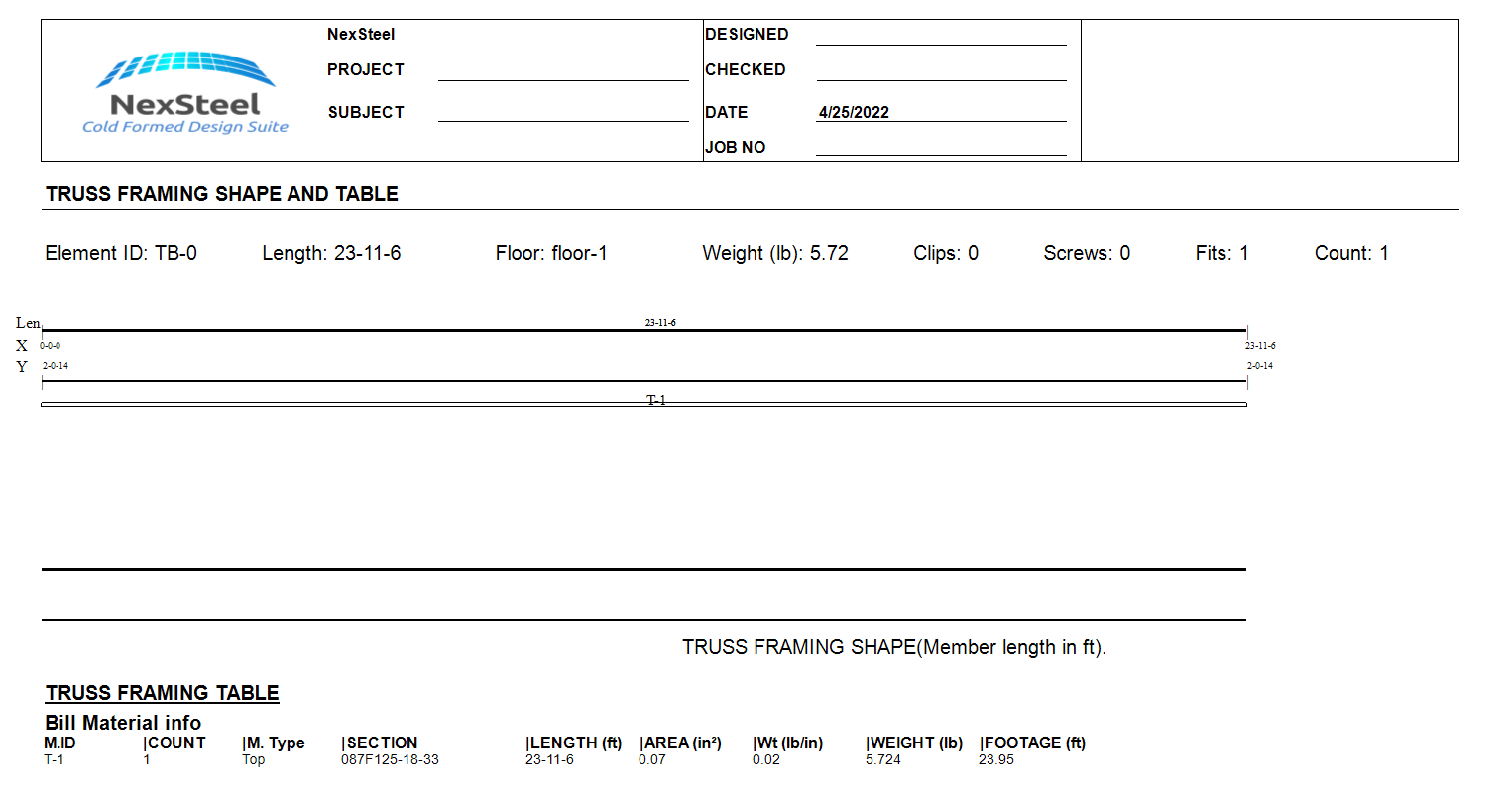
Lateral Bearing BOM report Sample
Users can reach Lateral Bearing BOM report from menu bar Project section or by shortcut (LBM)